
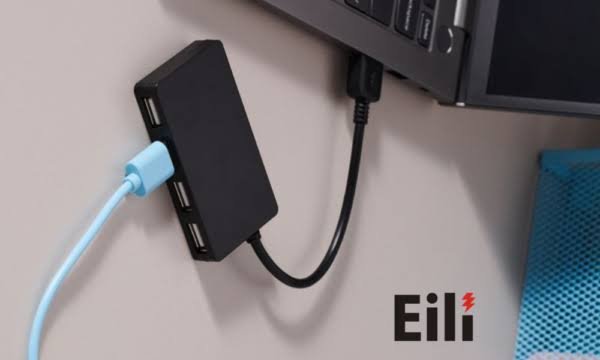
Modern laptops, tablets, and smartphones are becoming thinner and more compact, but there is one problem many users face: fewer ports. You might have a laptop with only two USB-C ports, yet need to connect a mouse, external monitor, keyboard, flash drive, and charger at the same time. This is where a USB-C hub becomes incredibly useful.
A USB-C hub allows you to connect multiple accessories to a single USB-C port, making it easier to work, study, transfer files, and enjoy entertainment without constantly switching cables. However, not all USB-C hubs offer the same features. Some support high-resolution external displays, while others focus on basic connectivity or fast data transfers.
Choosing the right hub can save you money, improve your workflow, and prevent compatibility problems. In this guide, we will explain how USB-C hubs work, the features worth considering, and how to find the best option for your devices.
What Is a USB-C Hub?
A USB-C hub is a small accessory that expands the number of connections available on a compatible device. You plug it into a USB-C port, and it provides additional ports for connecting other equipment.
Depending on the model, these ports may include USB-A, USB-C, HDMI, Ethernet, SD card readers, and audio connections.
For example, if your laptop has only USB-C ports, a hub can let you connect an older USB flash drive, an external monitor, and a wired mouse simultaneously. Some hubs also allow you to charge your laptop while using connected accessories.
USB-C hubs are especially useful for people who work from home, students who need multiple peripherals, photographers who transfer large files, and travelers who want a compact way to connect their devices.
Although hubs and docking stations serve similar purposes, a hub is generally smaller and more portable. A docking station often offers more ports, additional display support, and more extensive desktop connectivity.
How Does a USB-C Hub Work?
USB-C hubs use a USB-C connection to communicate with a host device, such as a laptop, tablet, or smartphone. The hub then distributes the available connectivity across its additional ports.
However, the USB-C connector itself does not guarantee that every feature will work. The capabilities depend on the USB standard, the device’s hardware, the hub’s specifications, and the supported display and power technologies.
For example, one USB-C hub might support basic USB data transfers and charging, while another can connect multiple high-resolution displays and transfer files at much higher speeds.
Some hubs also support USB Power Delivery, commonly known as USB PD. This allows compatible chargers to deliver power through the hub to the connected laptop or tablet.
Before buying a hub, it is important to check the capabilities of both the hub and the USB-C port on your device. A feature advertised on the hub will not necessarily work if your laptop does not support it.
Types of Ports Available on USB-C Hubs
Understanding the different ports can help you choose a hub that matches your everyday needs.
1. USB-A Ports
USB-A is the familiar rectangular port used by many traditional accessories, including keyboards, mice, flash drives, and external storage devices.
If your laptop has only USB-C ports, a hub with USB-A connections can help you continue using older accessories without purchasing replacements.
When comparing hubs, check the supported USB data standard. A USB-A port may support USB 2.0, USB 3.2, or another specification, and its transfer speed will depend on that standard and the connected device.
2. USB-C Ports
Additional USB-C ports can be useful for connecting compatible accessories, storage devices, and other peripherals.
However, not every USB-C port supports the same functions. Some ports handle data only, while others support charging or video output.
A hub may also have a dedicated USB-C port for power input. This port is designed to accept power from a charger and may not support data transfer.
Always read the port descriptions carefully instead of assuming that every USB-C connection can perform every task.
3. HDMI Ports
An HDMI port lets you connect your laptop or another compatible device to an external monitor, television, or projector.
This can be particularly helpful for people who want a larger display for office work, presentations, video editing, or entertainment.
When comparing HDMI-equipped hubs, check the maximum supported resolution and refresh rate. Some models support 4K at 30 Hz, while others support 4K at 60 Hz or different display configurations.
Remember that the connected laptop must also support video output through USB-C. A hub cannot add video output to a USB-C port that lacks the necessary display capabilities.
4. Ethernet Ports
Some USB-C hubs include an Ethernet port for a wired network connection.
Ethernet can be useful when you need a stable internet connection for video calls, online gaming, large downloads, or office work.
A wired connection may offer more consistent performance than Wi-Fi in certain environments, especially when wireless signals are weak or crowded.
If you need Ethernet, check whether the hub supports Gigabit Ethernet or a faster standard and whether your network equipment can take advantage of it.
5. SD and microSD Card Readers
Photographers, videographers, and content creators often benefit from hubs with built-in memory card readers.
These slots allow you to transfer files directly from compatible SD or microSD cards without carrying a separate reader.
However, transfer speeds vary depending on the card reader, the memory card, and the hub’s internal connection. If you regularly move large video files, check the supported card standards and advertised transfer speeds.
6. USB-C Power Delivery
USB-C Power Delivery allows compatible devices to receive power through a USB-C connection.
Many hubs include a USB-C power input that lets you connect a charger while using the hub’s other ports. This is especially convenient for laptops that have limited USB-C connections.
For example, you could connect an external monitor, a keyboard, and a mouse while charging your laptop through the same hub.
Pay attention to the maximum supported wattage. The power delivered to your laptop may be lower than the charger’s rated output because the hub uses some power itself. Make sure the combined setup can supply enough power for your device.
Key Features to Consider When Buying a USB-C Hub
Not every hub is suitable for every user. Before choosing one, consider the following features.
1. Compatibility With Your Device
Compatibility should be your first priority.
Check whether the hub supports your laptop, tablet, or smartphone. Some hubs work across multiple operating systems, while certain functions may depend on the device manufacturer or operating system.
You should also confirm that your device supports the features you need, particularly video output, high-speed data transfers, and charging.
For example, a USB-C port on a phone may support charging and data transfer but not external display output. In that case, an HDMI port on the hub will not automatically make it possible to connect the phone to a monitor.
2. Data Transfer Speeds
If you regularly transfer large files, data speed is an important consideration.
USB hubs may support different standards, including USB 2.0, USB 3.2, and USB4-related technologies, depending on the product. The names and specifications can be confusing, so check the actual advertised speed rather than relying on the USB-C connector alone.
For basic tasks such as connecting a keyboard or mouse, modest speeds are generally sufficient. For external SSDs, video projects, and large backups, a faster hub can make a noticeable difference.
Keep in mind that the slowest component in the connection chain can limit performance. Your laptop, hub, cable, and storage device must all support the desired speed.
3. Display Resolution and Refresh Rate
If you plan to connect an external monitor, pay close attention to display specifications.
Some hubs support a single 4K monitor at 60 Hz, while others offer lower refresh rates or different resolutions. Multi-monitor support can be more complicated because it depends on the hub’s hardware, the laptop’s graphics capabilities, and the display technology being used.
MacBooks, Windows laptops, and other devices may have different limitations on the number of external displays they can support.
Before buying, confirm the exact monitor setup you want to use, including the number of displays, their resolution, and their refresh rates.
4. Power Delivery and Charging
If you want to charge your laptop through the hub, check the supported USB Power Delivery wattage.
A small tablet may require less power than a high-performance laptop. If the hub cannot deliver enough power, your laptop may charge slowly, display a charging warning, or continue losing battery during demanding tasks.
Also check whether a charger is included. Many hubs do not come with one, so you may need to purchase a compatible USB-C charger separately.
A reliable charging setup is especially important for people who use a hub as part of a permanent desk arrangement.
5. Build Quality and Portability
A good USB-C hub should be durable enough for everyday use.
Look for a sturdy housing, well-fitted connectors, and a cable that can withstand regular plugging and unplugging. Aluminum housings are common, although material alone does not guarantee better performance.
If you travel frequently, a compact hub with the ports you actually need is usually more practical than a large model with many unused connections.
For a desk setup, a slightly larger hub may be worthwhile if it provides better port placement or more connectivity.
6. Heat Management
USB-C hubs can become warm during operation, particularly when several ports are active or power is passing through the device.
Some heat is normal, but excessive temperatures, frequent disconnections, or unstable performance may indicate a problem.
Choose a hub from a reputable manufacturer and avoid covering it with fabric or placing it somewhere that prevents heat from escaping.
If you plan to use high-speed external storage, multiple peripherals, and laptop charging simultaneously, look for a model designed to handle that workload.
USB-C Hub vs. Docking Station: What’s the Difference?
USB-C hubs and docking stations both expand connectivity, but they are designed for somewhat different needs.
| Feature | USB-C Hub | Docking Station |
|---|---|---|
| Size | Usually compact | Often larger |
| Port selection | Basic to moderate | Often extensive |
| Portability | Ideal for travel | Better for a fixed desk |
| External displays | Depends on the model | Often offers more display options |
| Power delivery | Available on many models | Common on laptop-focused models |
| Typical use | Everyday accessories and travel | Full desktop workstation |
A USB-C hub is generally the better choice if you want to connect a few accessories without carrying much extra equipment.
A docking station may be more suitable if you use several monitors, wired networking, external drives, and other peripherals every day.
Neither option is universally better. Your decision should depend on how many devices you need to connect and whether portability or expanded connectivity matters more.
Best USB-C Hub Features for Different Users
The ideal hub depends on how you use your devices.
For Students
Students often need a simple, affordable hub for connecting a mouse, flash drive, external monitor, or classroom projector.
A compact model with USB-A ports, HDMI, and USB-C power input is a practical starting point. If you rarely transfer large files, you may not need the most expensive high-speed hub.
For Office Workers
For a home office, look for a hub that supports your monitor, keyboard, mouse, and laptop charger.
Ethernet can be useful if you prefer a wired connection, while additional USB ports can help reduce cable swapping.
If you work with two monitors, verify multi-display compatibility before purchasing. A hub with two HDMI ports does not necessarily support two independent extended displays on every computer.
For Photographers and Video Editors
Creative professionals should prioritize high-speed data connections and compatible SD or microSD card readers.
If you frequently move large video files, a hub with faster USB support can help reduce transfer times.
It is also worth checking whether the hub can support your external SSD at its full speed while other ports are in use.
For Travelers
Travelers usually benefit from a lightweight hub that fits easily into a laptop bag.
Look for the ports you are most likely to need, such as USB-A, HDMI, and USB-C power input. A compact design can be particularly useful when connecting to hotel televisions, meeting-room displays, or shared workspaces.
Avoid paying extra for features you are unlikely to use.
For Gamers
A USB-C hub can be helpful for connecting a gaming laptop to a keyboard, mouse, wired network, or external display.
However, gamers should pay close attention to display refresh rates and bandwidth. A hub that supports 4K at 30 Hz may not be suitable for a high-refresh-rate gaming monitor.
For competitive gaming, connecting a monitor directly to a dedicated video output may be preferable when available.
Common Mistakes to Avoid When Buying a USB-C Hub
A little research can prevent compatibility issues and unnecessary spending.
Assuming every USB-C port supports video: USB-C describes the connector, not every function it can provide. Check whether your device supports video output.
Ignoring display limitations: A hub advertised with multiple display ports may not support the number of independent monitors you expect.
Buying a hub with insufficient charging power: Make sure the hub and charger can provide enough power for your laptop.
Confusing charging ports with data ports: Some USB-C ports on hubs are designed only for power input. Read the specifications carefully.
Choosing price over reliability: An unusually cheap hub may not offer the performance, build quality, or compatibility you need. Compare specifications and warranty coverage before buying.
Forgetting about cable quality: The connected USB-C cable can limit charging, data transfer, or display performance. Use cables rated for the capabilities you need.
How to Set Up a USB-C Hub
Setting up most USB-C hubs is straightforward.
- Check your device’s USB-C capabilities and confirm that the hub is compatible.
- Connect the hub to an available USB-C port on your laptop, tablet, or other supported device.
- If the hub supports pass-through charging, connect a compatible charger to its designated power input.
- Attach your accessories, such as a keyboard, mouse, external drive, monitor, or Ethernet cable.
- Check your device’s display settings if you connect an external monitor.
- Test your accessories to confirm that they work as expected.
Most basic hubs are plug-and-play, although certain features may require software, drivers, or operating system settings.
If a connected monitor does not work, first check whether your device supports video output through that USB-C port. If an external drive transfers files slowly, check the specifications of the drive, hub, cable, and laptop connection.
Are USB-C Hubs Worth Buying in 2026?
For most people who regularly connect multiple accessories, a USB-C hub is a practical and worthwhile investment.
It can make a laptop more versatile, reduce the need for separate adapters, and create a cleaner workspace. It is also a convenient accessory for students, remote workers, photographers, and travelers who need reliable connections on the go.
The key is to choose a hub based on your actual requirements rather than the number of ports advertised on the packaging.
If you only need to connect a mouse and a flash drive, a basic model may be enough. If you need external monitors, high-speed storage, and laptop charging, it is worth investing in a hub with the appropriate specifications.
Before making your purchase, compare compatibility, data speeds, display support, power delivery, and build quality. These details matter more than appearance alone.
Final Thoughts
USB-C hubs have become useful accessories as laptops and other devices increasingly rely on compact designs with fewer physical ports. The right hub can make it easier to connect your everyday accessories, work with external monitors, transfer files, and charge compatible devices.
However, choosing one requires more than checking whether it has USB-C, HDMI, or USB-A ports. You also need to understand the capabilities of your device and make sure the hub supports the features you intend to use.
Take a few minutes to identify your needs before buying. Consider the accessories you use daily, the monitors you want to connect, and whether you need high-speed data transfer or pass-through charging.
Ultimately, the best USB-C hub is the one that works reliably with your devices, provides the ports you need, and makes your everyday setup simpler without costing more than necessary.